Writing a Screenplay in Alistair
Screenplay is its own project type in Alistair: a real industry-format editor, not a reskinned manuscript. No slugline punctuation to memorize. Every element is a deliberate click.
Start a Screenplay project
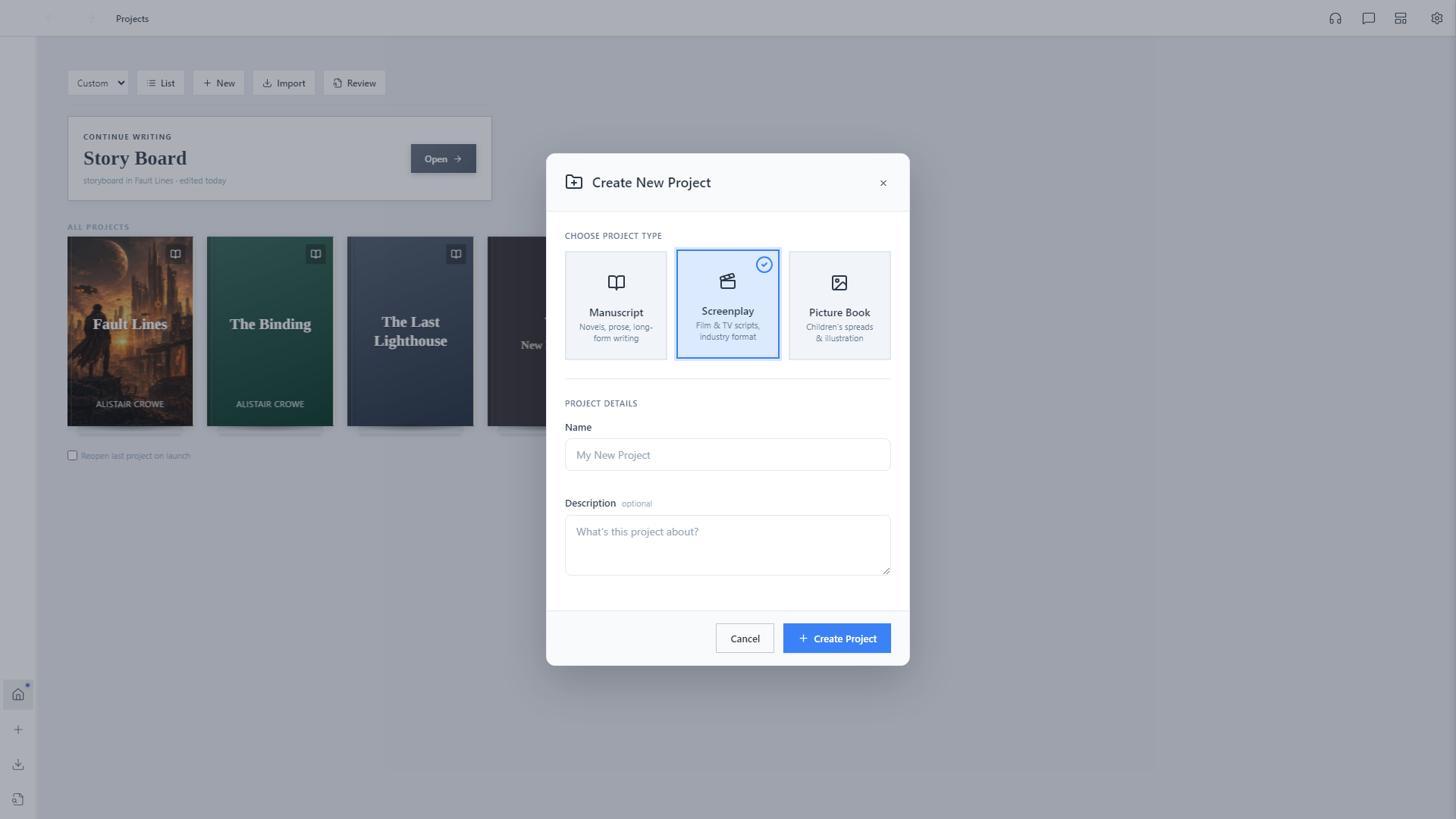
From New Project, choose Screenplay instead of Manuscript. This isn't a cosmetic switch. It swaps in a purpose-built element-type editor, Courier 12pt page geometry, and a dedicated compiler built for scripts, not prose.
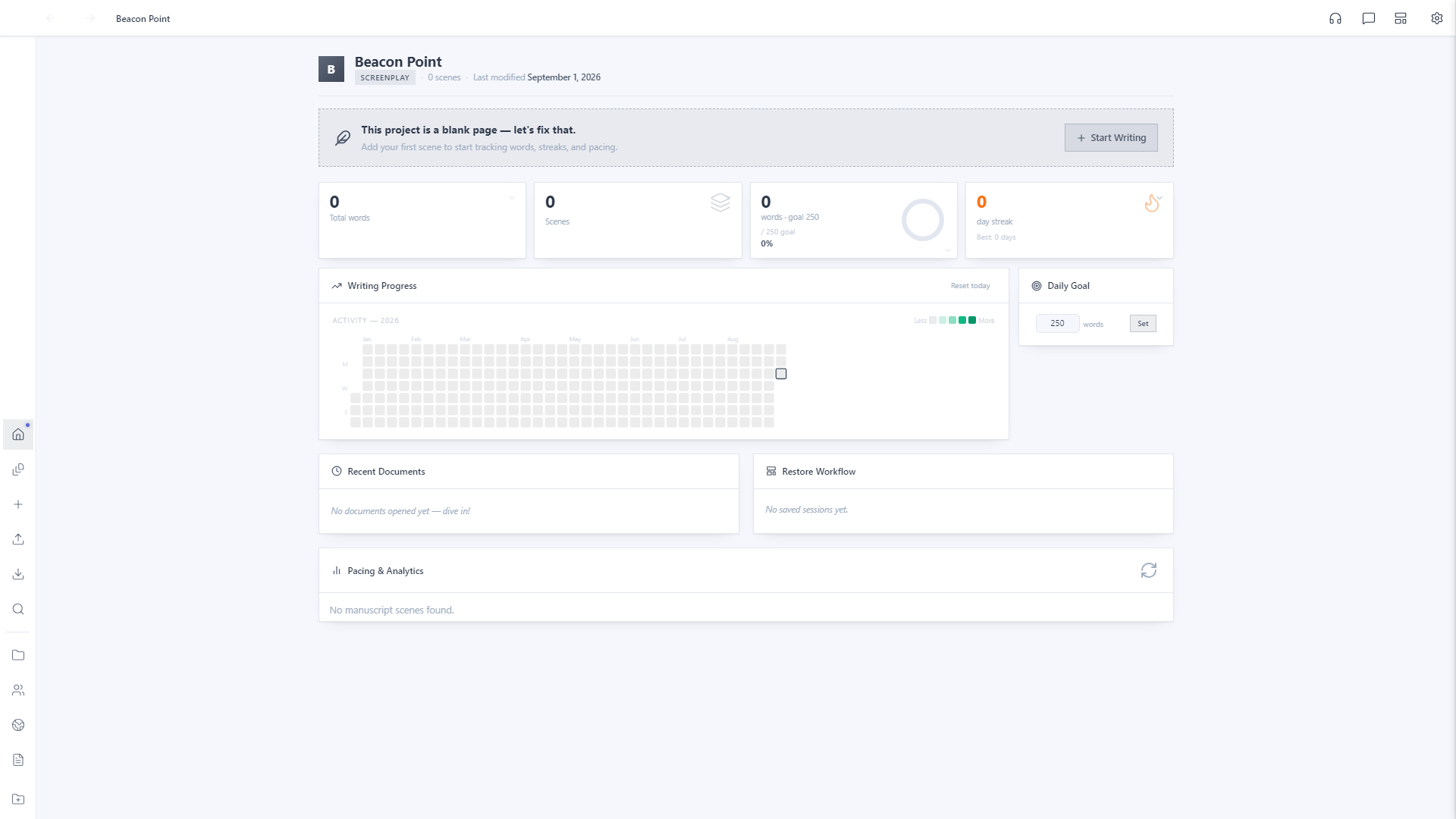
The same dashboard, a different craft
Your project home works exactly the way it does for a novel: word count, scene count, daily goal, and a writing streak, just tracking Sequences instead of chapters. Characters, World Building, and Story Elements all carry over too. Screenplay projects use the same cast-and-world tools as a manuscript.
Meet the element-type toolbar
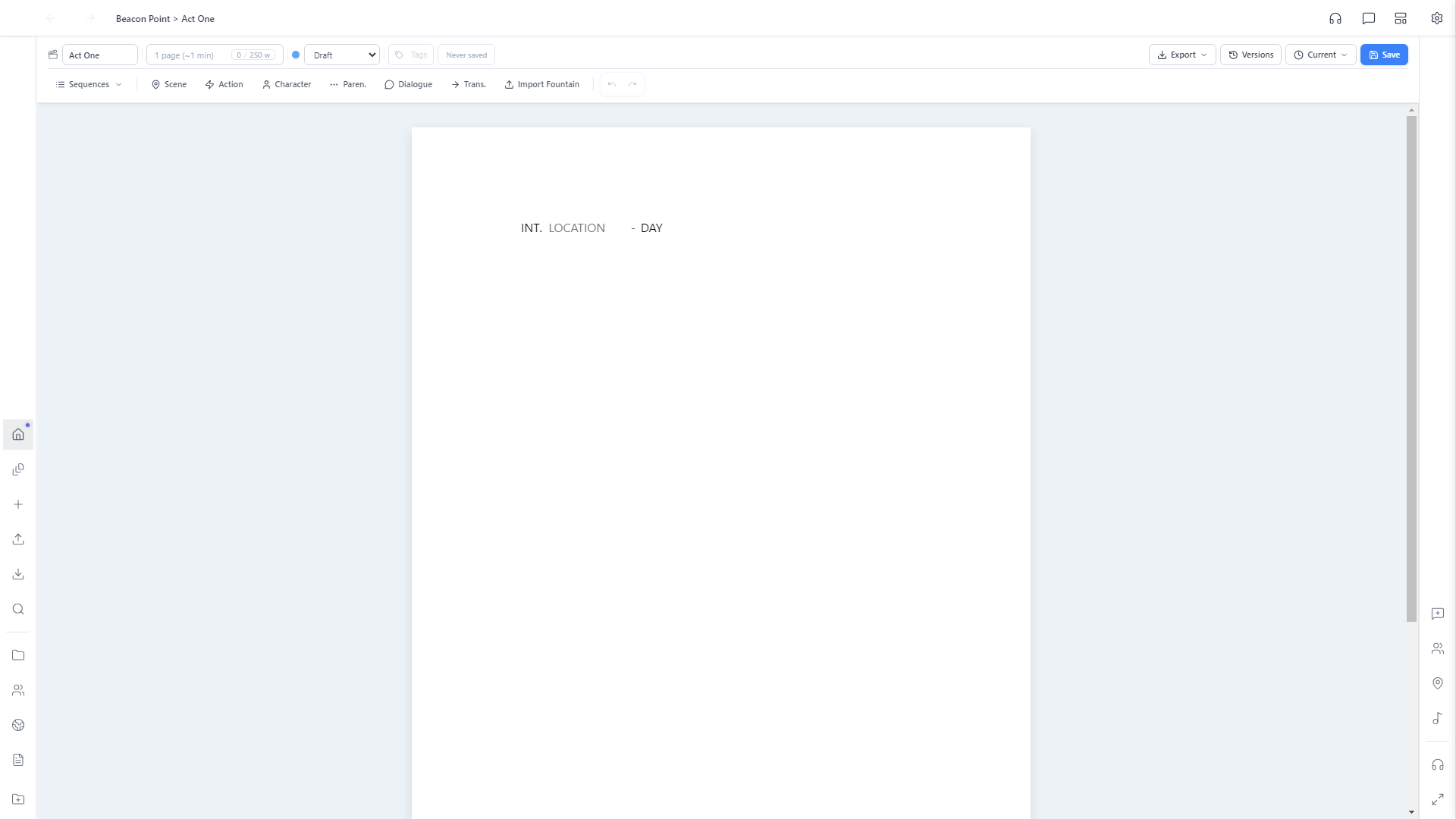
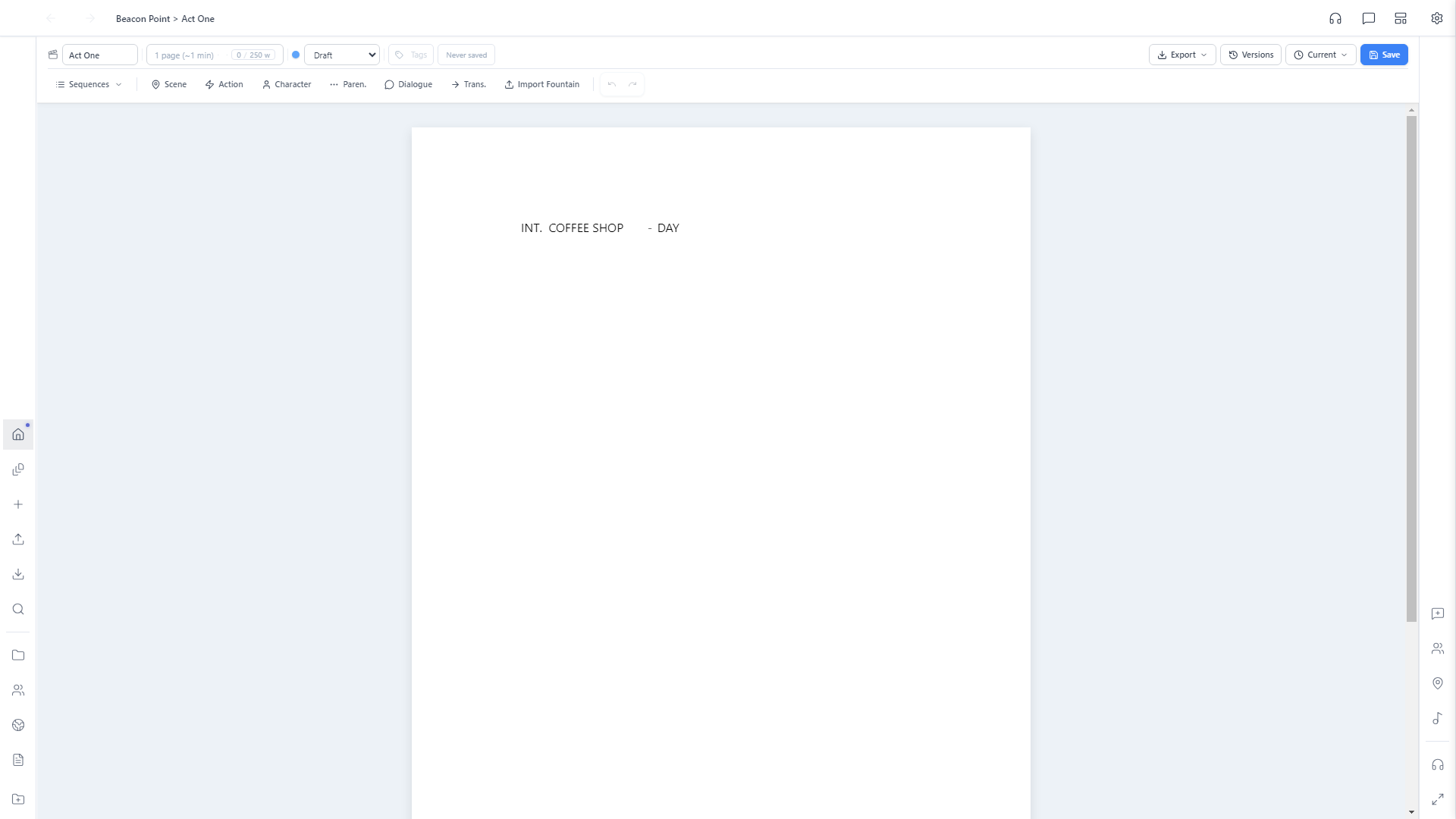
Click Start Writing to create your first sequence. Instead of typing formatting conventions, a toolbar sits above the page with one button per element: Scene, Action, Character, Paren., Dialogue, Trans. Click one to set what the current line is, and Alistair handles the margins and capitalization.
Build a scene heading without typing punctuation
A scene heading isn't one line you type from scratch. It's three small fields: INT./EXT., a Location you type freely, and a Time of Day you pick from a list. Alistair composes them into the correctly punctuated, all-caps slugline automatically.
Action, character, and dialogue
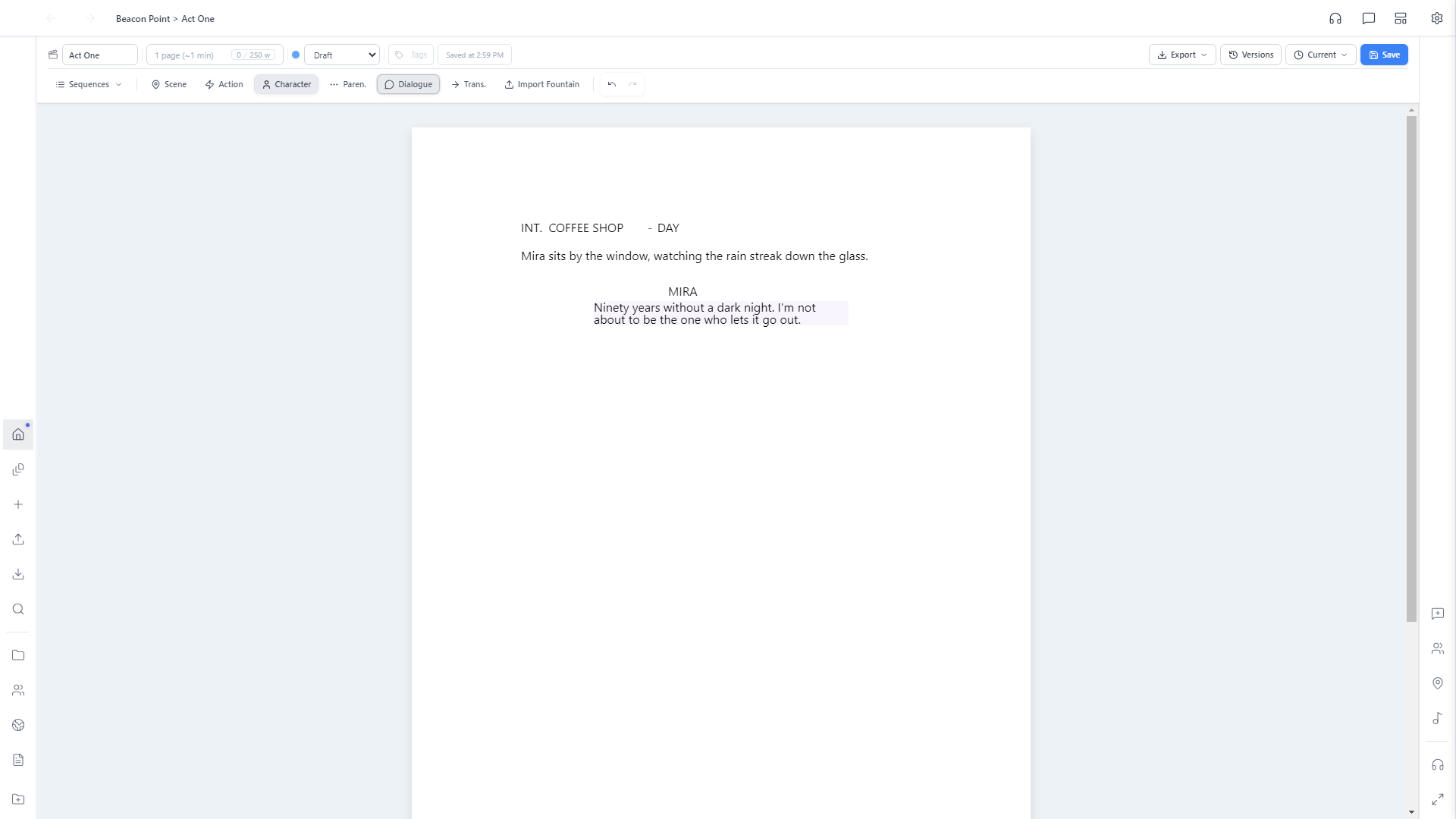
Write the action line, click Character, and type a name. Alistair autocompletes from characters already used in the project. Then write the dialogue underneath. Each element type gets its own correct indentation automatically.
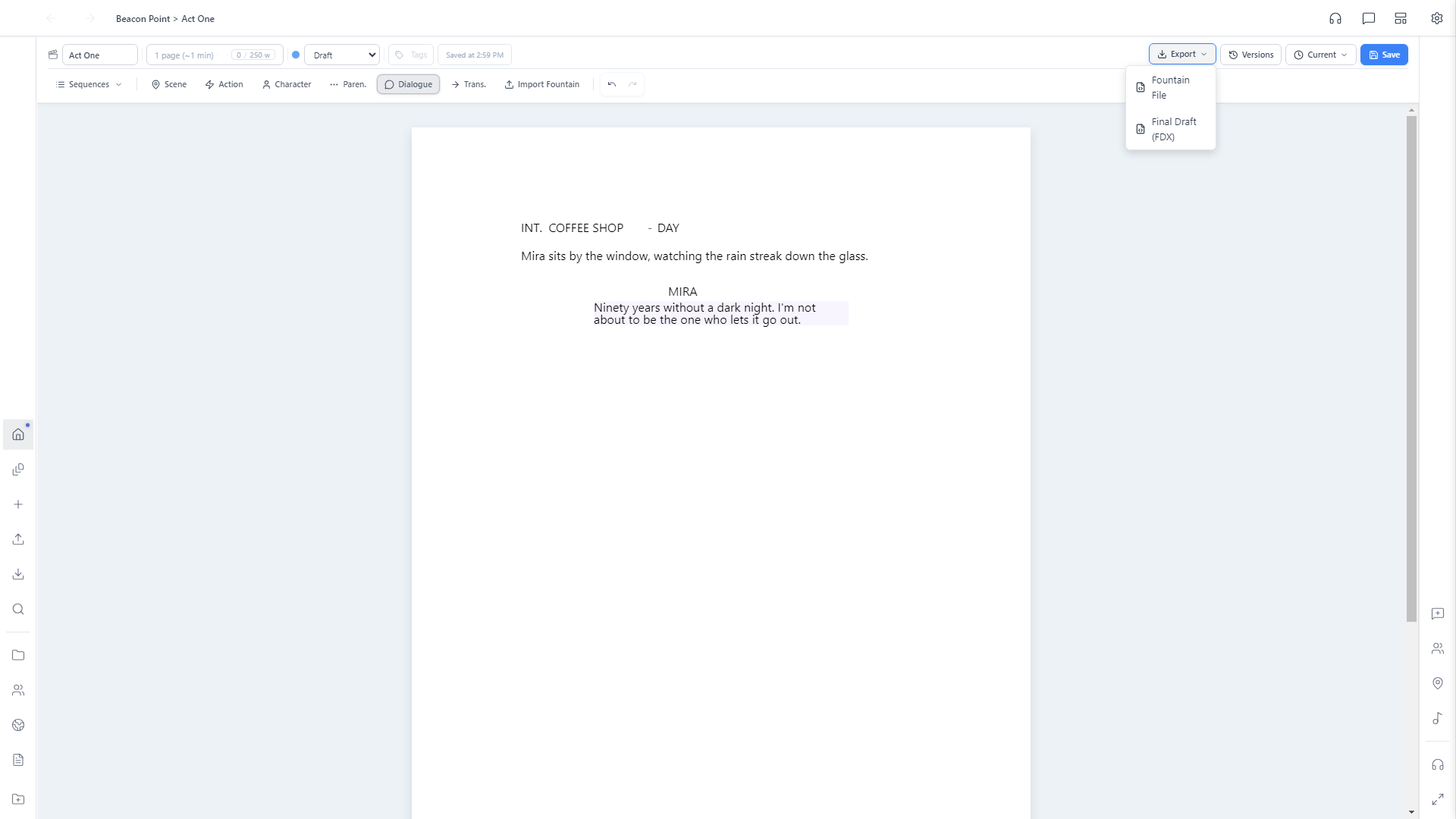
Export to Fountain or Final Draft
When you're ready to share a script or move it into another tool, Export offers a plain-text Fountain file or industry-standard Final Draft (FDX), both readable by virtually every other screenwriting app.