Setting Up Your Local LLM
Alistair's writing assistance runs on a language model that lives entirely on your machine. Nothing you write is ever sent anywhere. This walks through picking and downloading one that fits your hardware.
Find ML / LLM in Settings
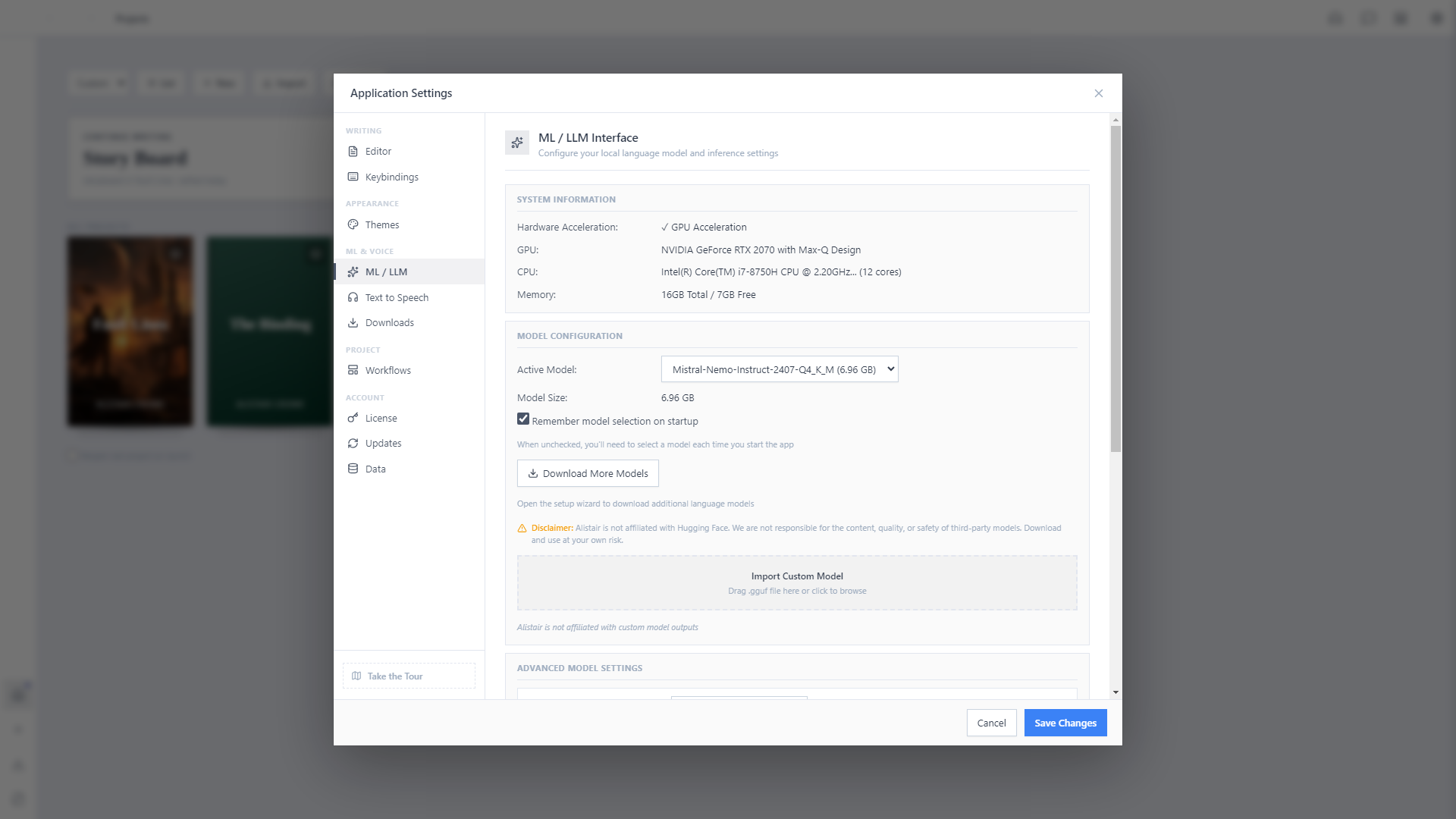
Open Settings and go to ML / LLM under ML & Voice. This panel is your control center: it shows your detected hardware, your active model, and a shortcut into the Setup Wizard whenever you want to add another.
Run the Setup Wizard
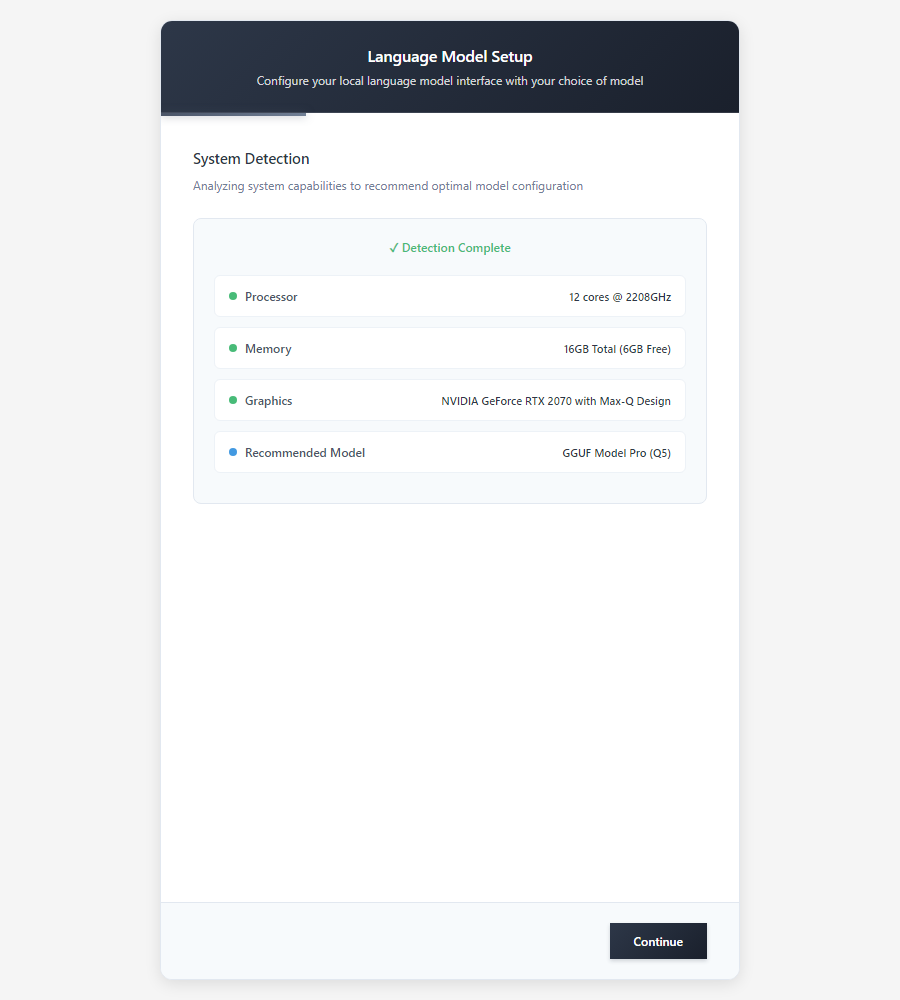
Click Download More Models to launch the Setup Wizard. It starts by scanning your own machine (CPU, memory, and graphics card) and uses that to work out what size of model you can actually run well, instead of guessing.
Choose how to get a model
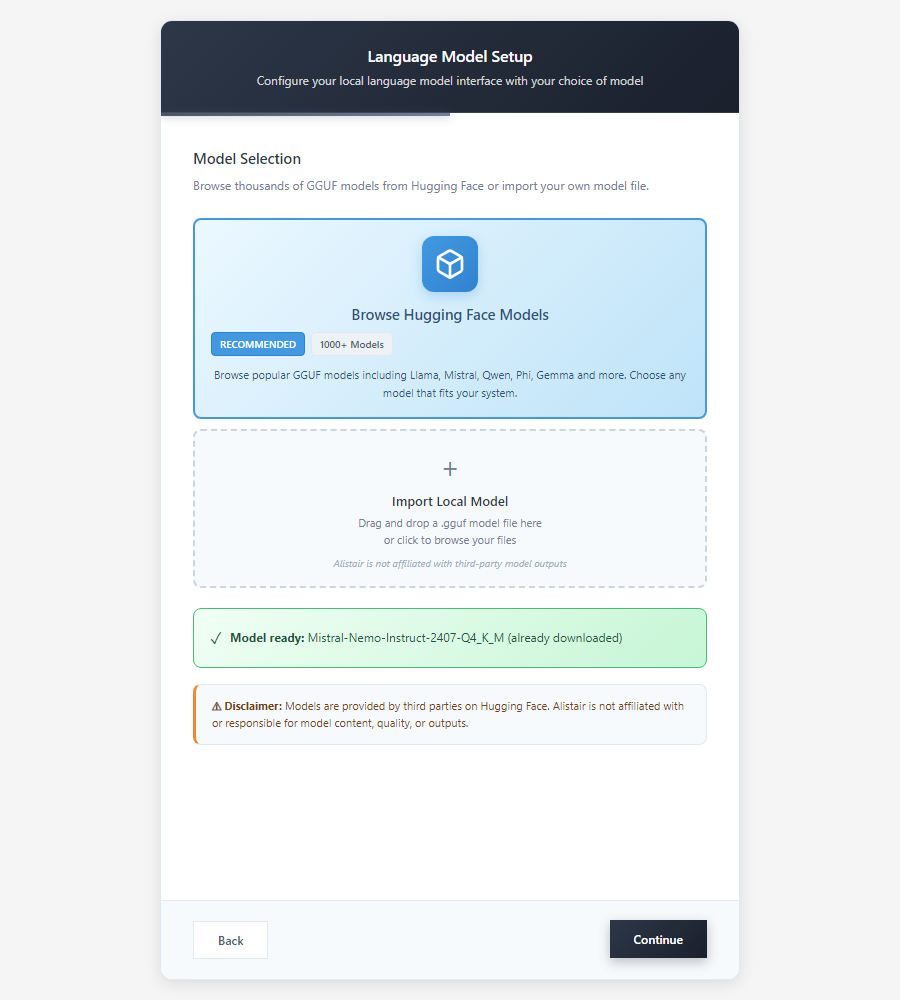
Continue to Model Selection. Most people want Browse Hugging Face Models: a curated, searchable library of writing-suited models. Already have a .gguf file downloaded elsewhere? Import Local Model takes it directly, drag-and-drop.
Pick a model sized to your hardware
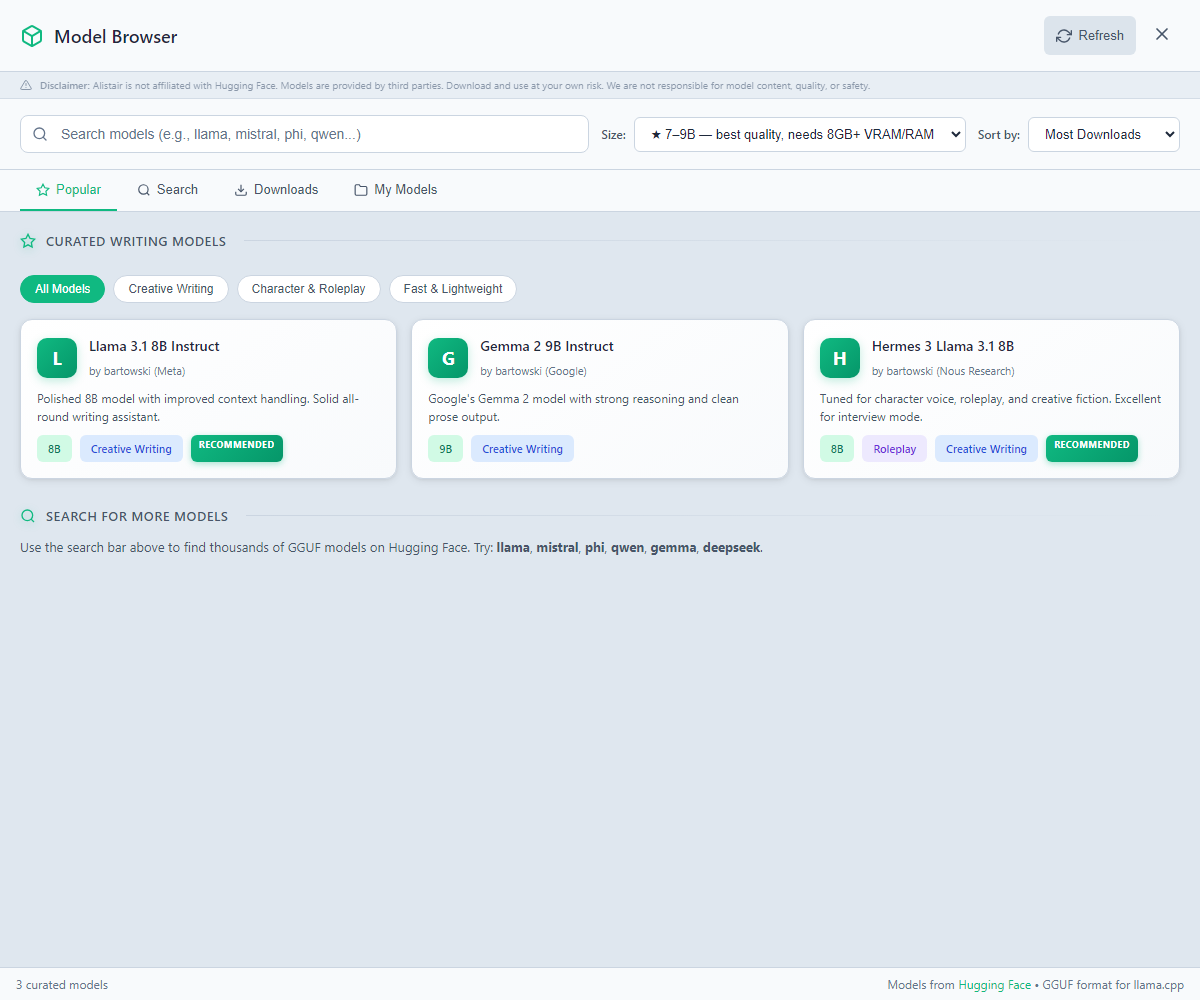
The Model Browser opens with a handful of curated, writing-focused models up front, plus a search bar into thousands more GGUF models on Hugging Face, filterable by size so you only see models your machine can actually run well. Click a model to download it; Alistair handles the rest.