Templates That Know Your Story
A sheet you design in the visual builder doesn't have to stand alone. It can show who could carry a magic item, look up the role of the character who made it, work out its strength, show its price only when it's legendary, and find every chapter that mentions it. All of this updates as you write, and none of it needs code.
Give a document its own icon
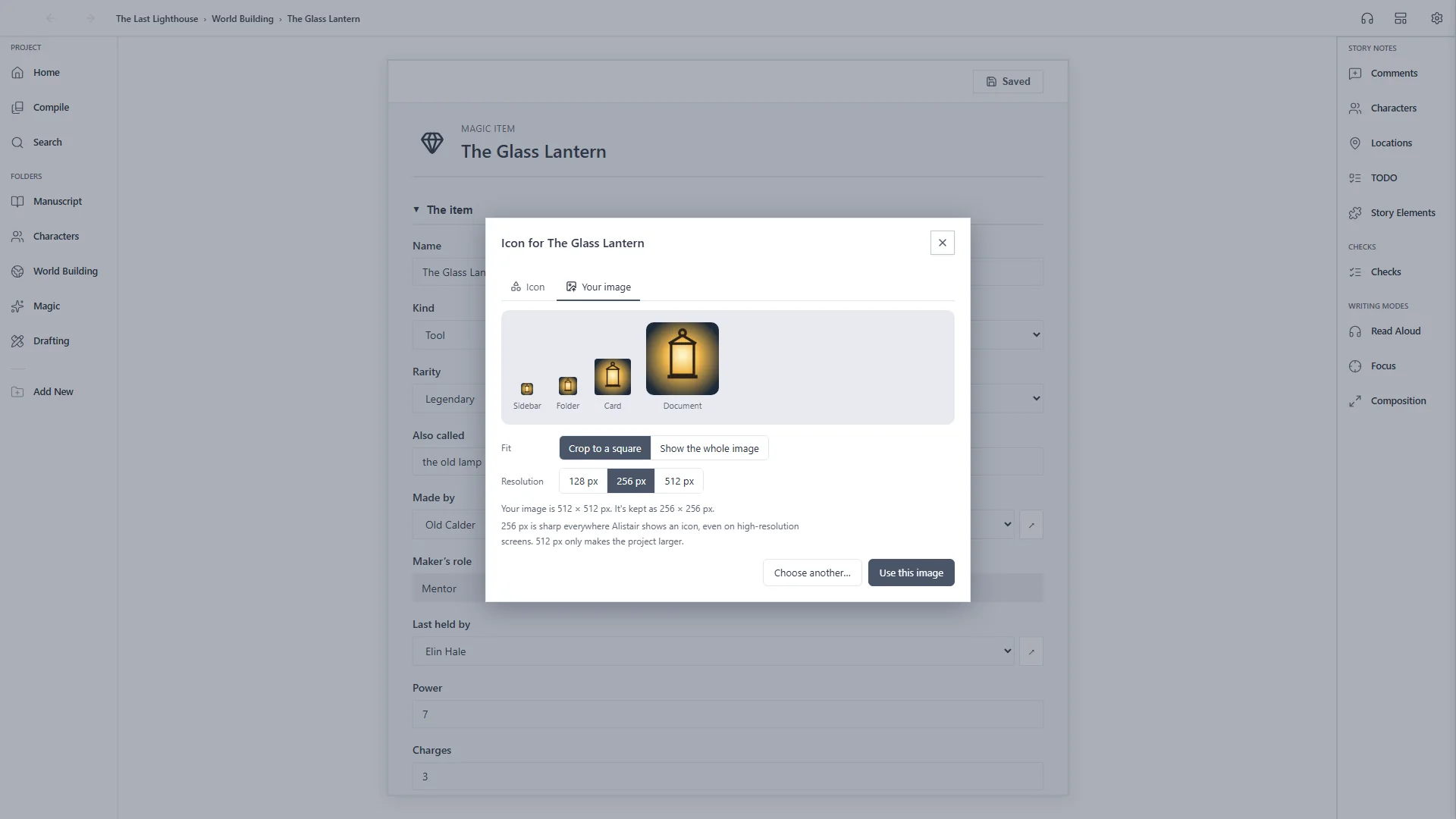
Every document made from a template starts with the template's icon. To give one its own, click the icon at the top of the document (or right-click it in the folder menu and choose Change Icon…). Search by what you mean: “lamp”, “fire” or “sword” find the icons that fit. Pick a color and click the icon. It shows in the folder menu, on the folder's tiles and in Recents.

Or use your own picture
On the Your image tab, drop in a picture or choose one. You see it at every size Alistair shows it, from the sidebar to the top of the document. Choose whether to crop it to a square or show the whole picture. 256 px is sharp everywhere; for a small picture, Alistair suggests the smallest size that keeps its detail. The picture is kept in your project, so it works offline and goes with your backups.
List what's already in your story
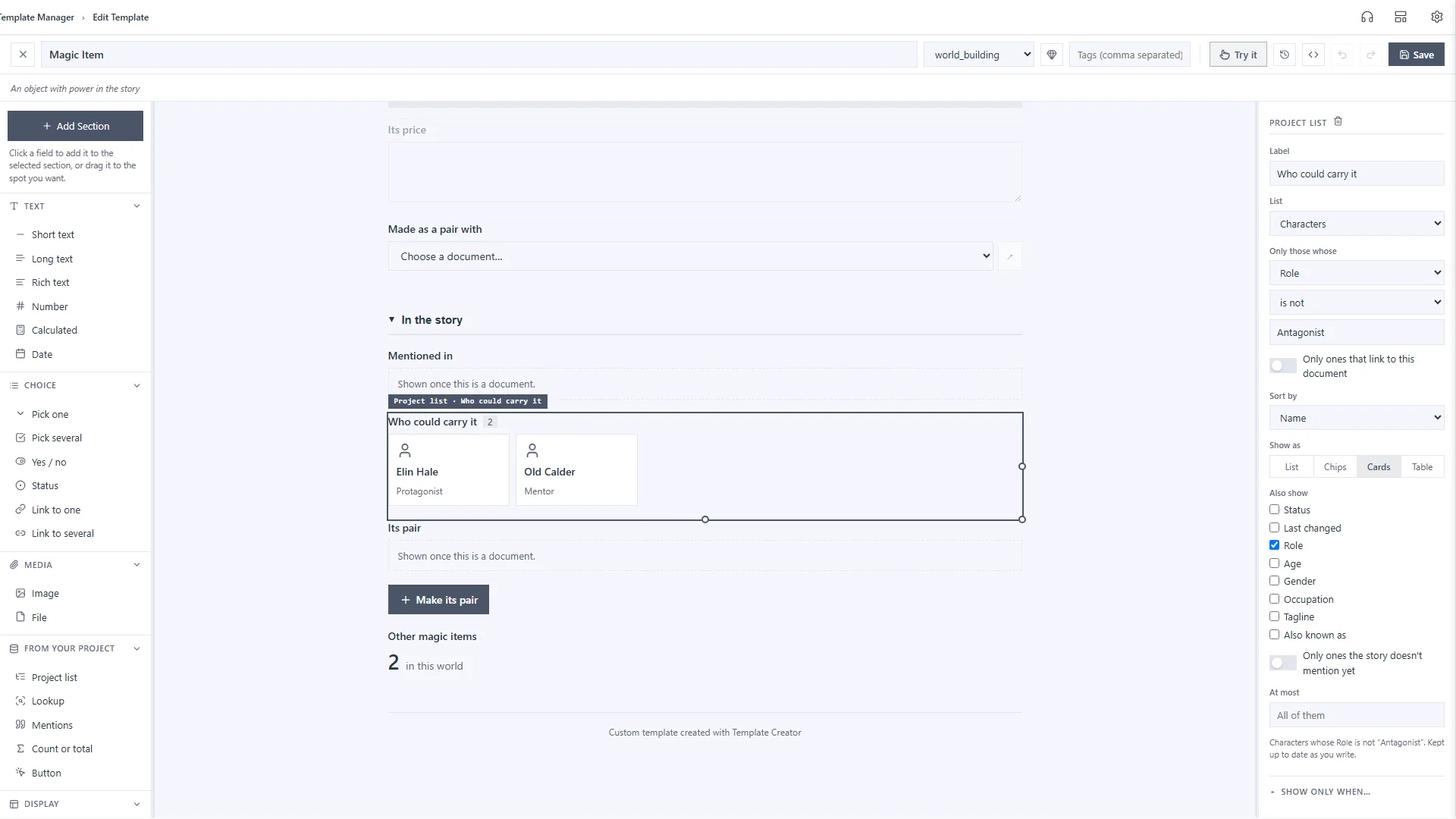
In the builder, the From your project fields read your project. A Project list shows characters, places, scenes, or documents made from a template. Narrow it with Only those whose: here, every character whose role is not Antagonist. Show it as a list, cards or a table, with up to three extra details beside each name. Turn on Only ones that link to this document to list just the ones that point here.
Look something up through a link
A Lookup shows a detail of whatever a link field points to. “Maker's role” reads the Role of the character chosen in “Made by”. Change the maker and it changes with them.

Let the numbers work themselves out
A Calculated field works out a number from the others on the page. Write a formula with field names in square brackets, such as [Power] × [Charges], or click the chips to add them. The builder checks the formula as you write and shows what it gives with example numbers. The result is saved, so lists and counts can use it.
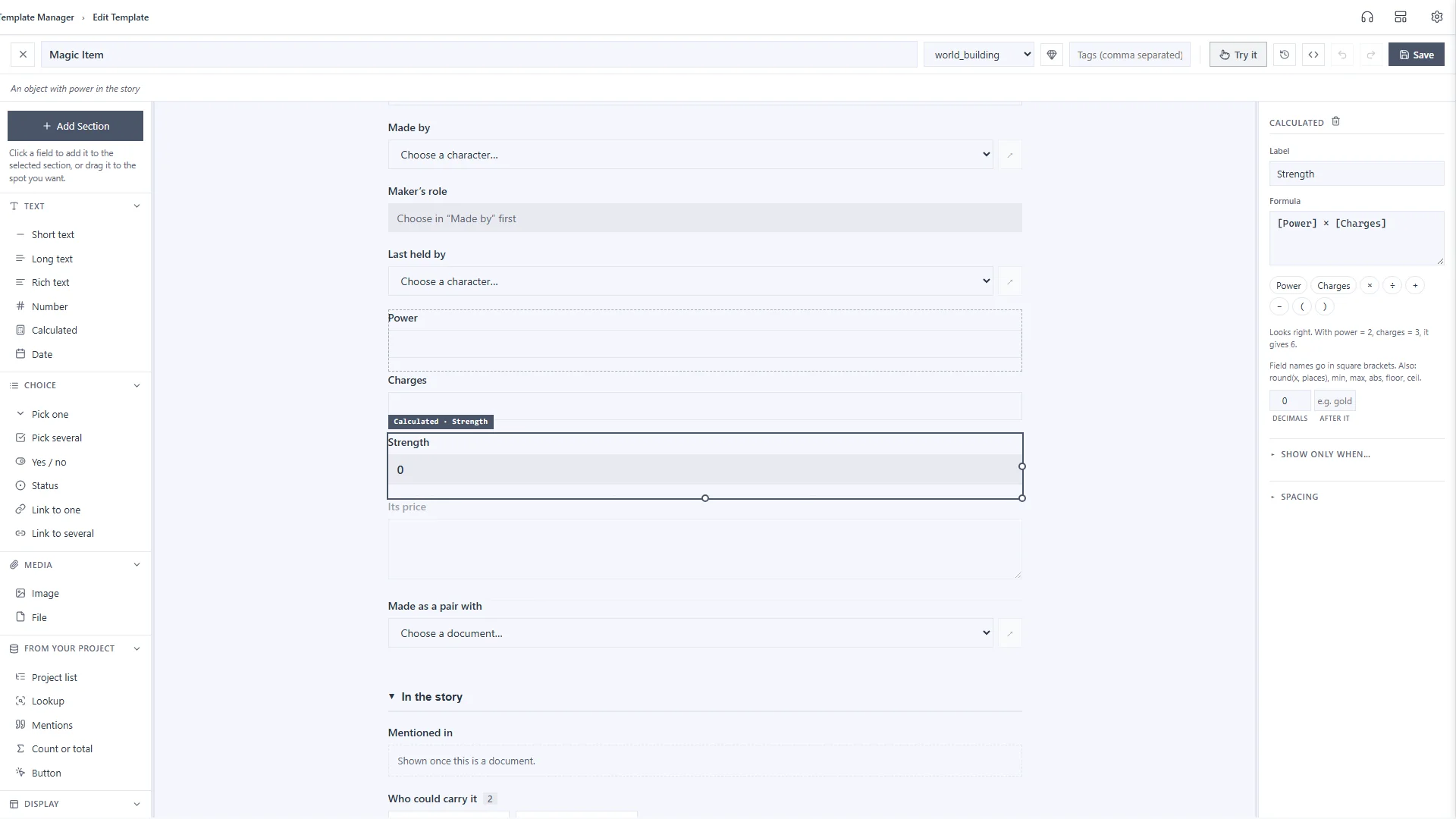
round(x, places), min, max, abs, floor and ceil. A Yes / no field counts as 1 or 0.
Show a field only when it matters
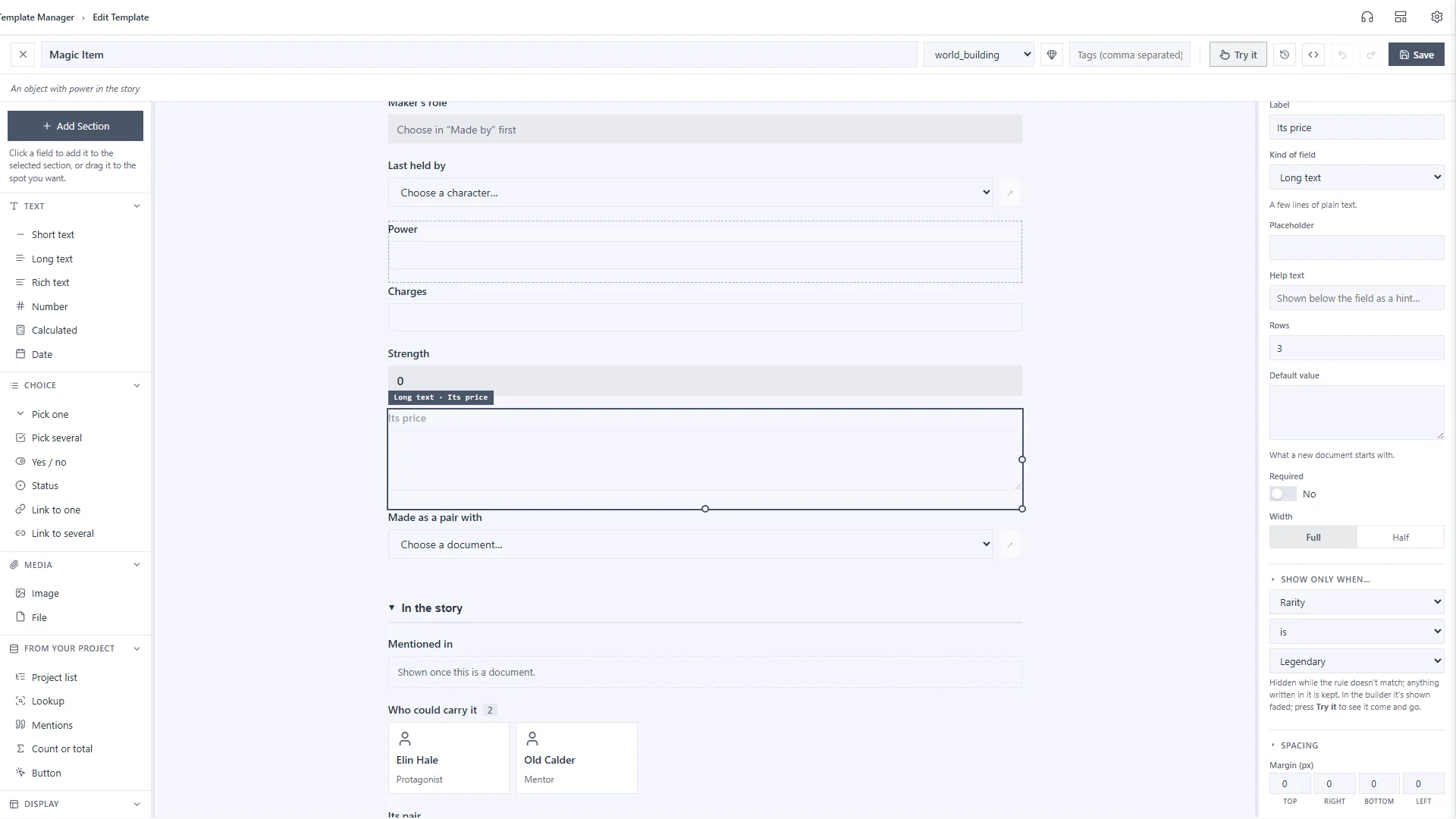
Open Show only when… on any field or section and choose a rule: “Its price” shows only when Rarity is Legendary. In the builder it stays visible but faded, so you can still change it; press Try it to watch it come and go. Anything written in it is kept while it's hidden.
Fill it in
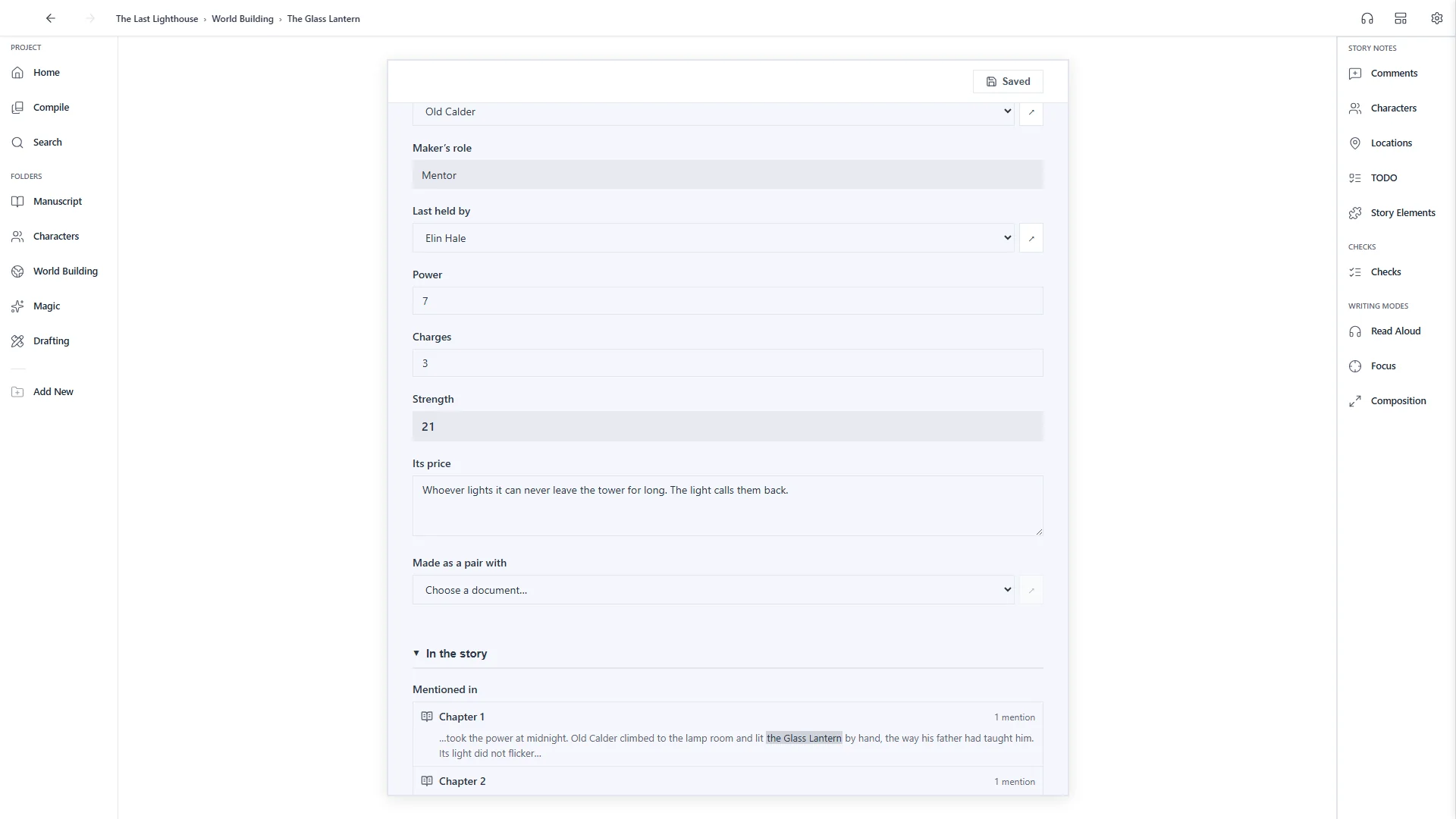
In the Glass Lantern, choosing Old Calder as its maker fills in his role, Mentor. Power 7 and three charges give a strength of 21. Because it's Legendary, its price shows.
See where it appears in your story
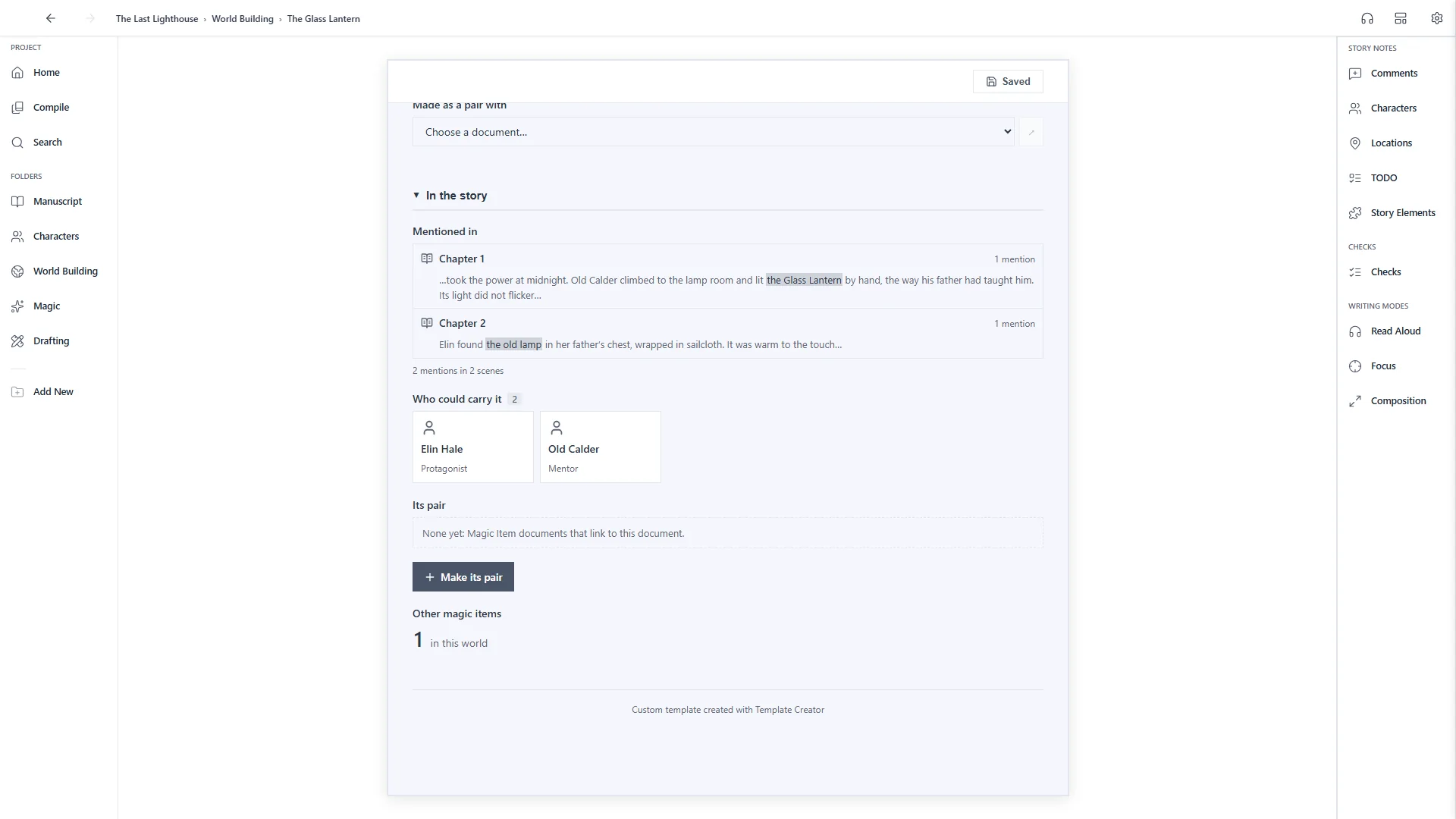
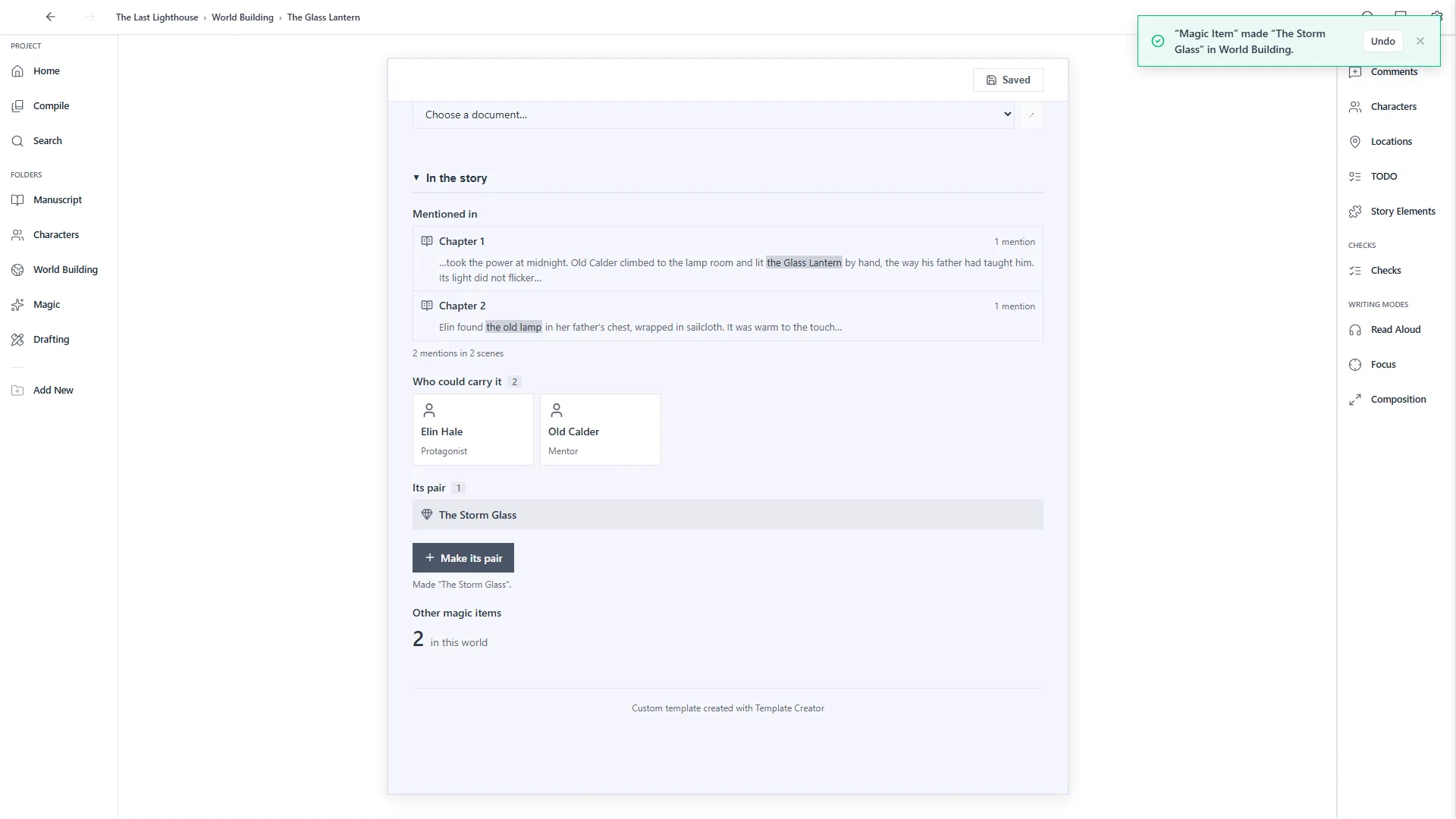
Mentions finds every scene that names the item, with the passage and the name highlighted. It matches whole words, and it can also look for the other names written in a field, such as “the old lamp”. Click a scene to open it. Count or total shows a number from the project: here, how many other magic items there are. It can also total or average a number field, or count words, scenes or mentions.
Add a button that makes documents
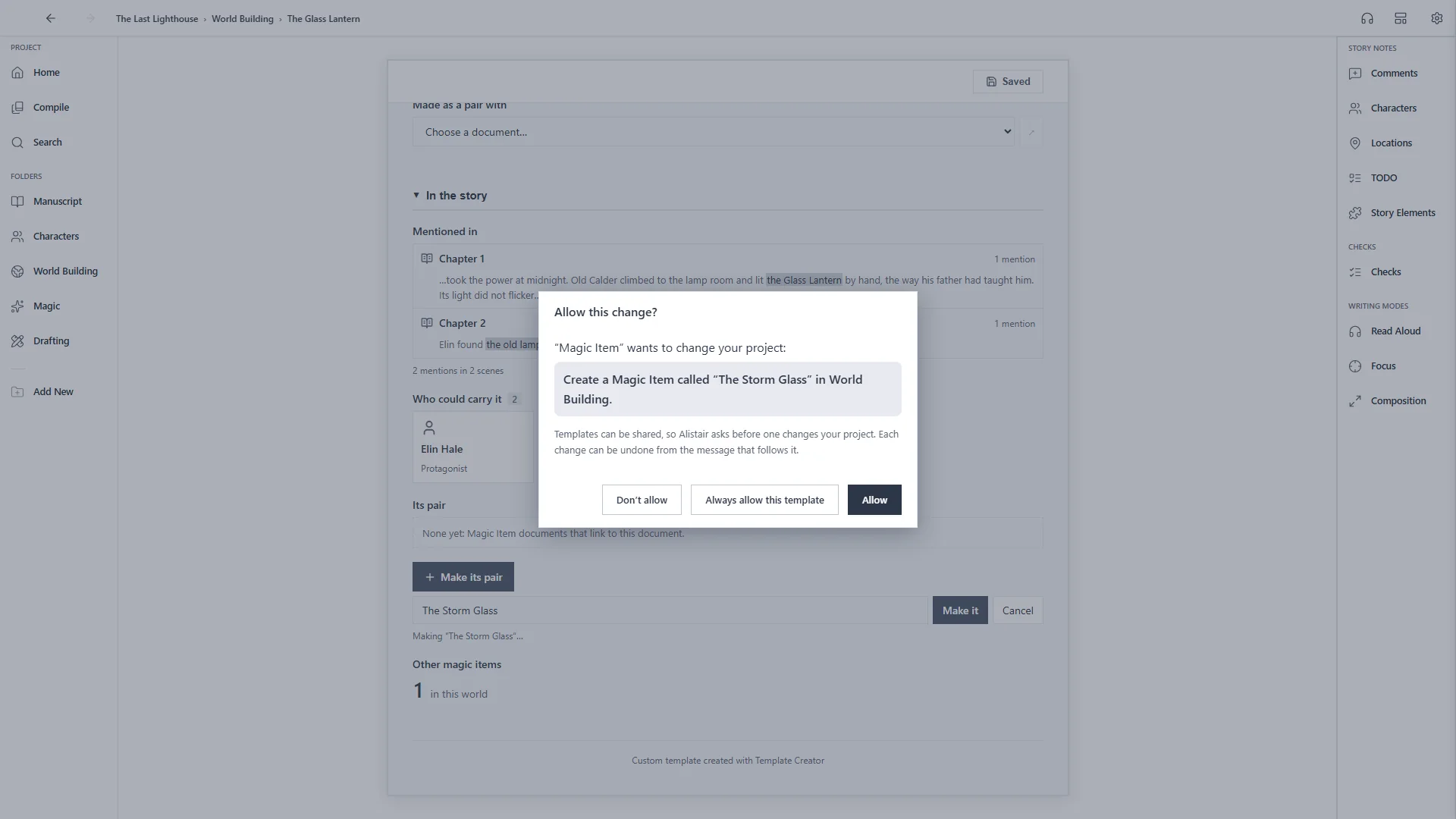
A Button makes a new document: one like this, one from another template, or a character, place or note. It can link the new document back through one of its link fields. Here, Make its pair makes a Magic Item whose “Made as a pair with” points to the Glass Lantern. Type a name and press Make it. Templates can be shared, so the first time, Alistair asks before the template changes your project.
Undo it, or allow it always
Every change shows a message with Undo. The new item appears straight away under “Its pair”, and the count goes up. If you trust a template, choose Always allow this template: it won't ask again, but each change still shows its message. Template Manager marks those templates, and Stop makes them ask again.
Go further in code
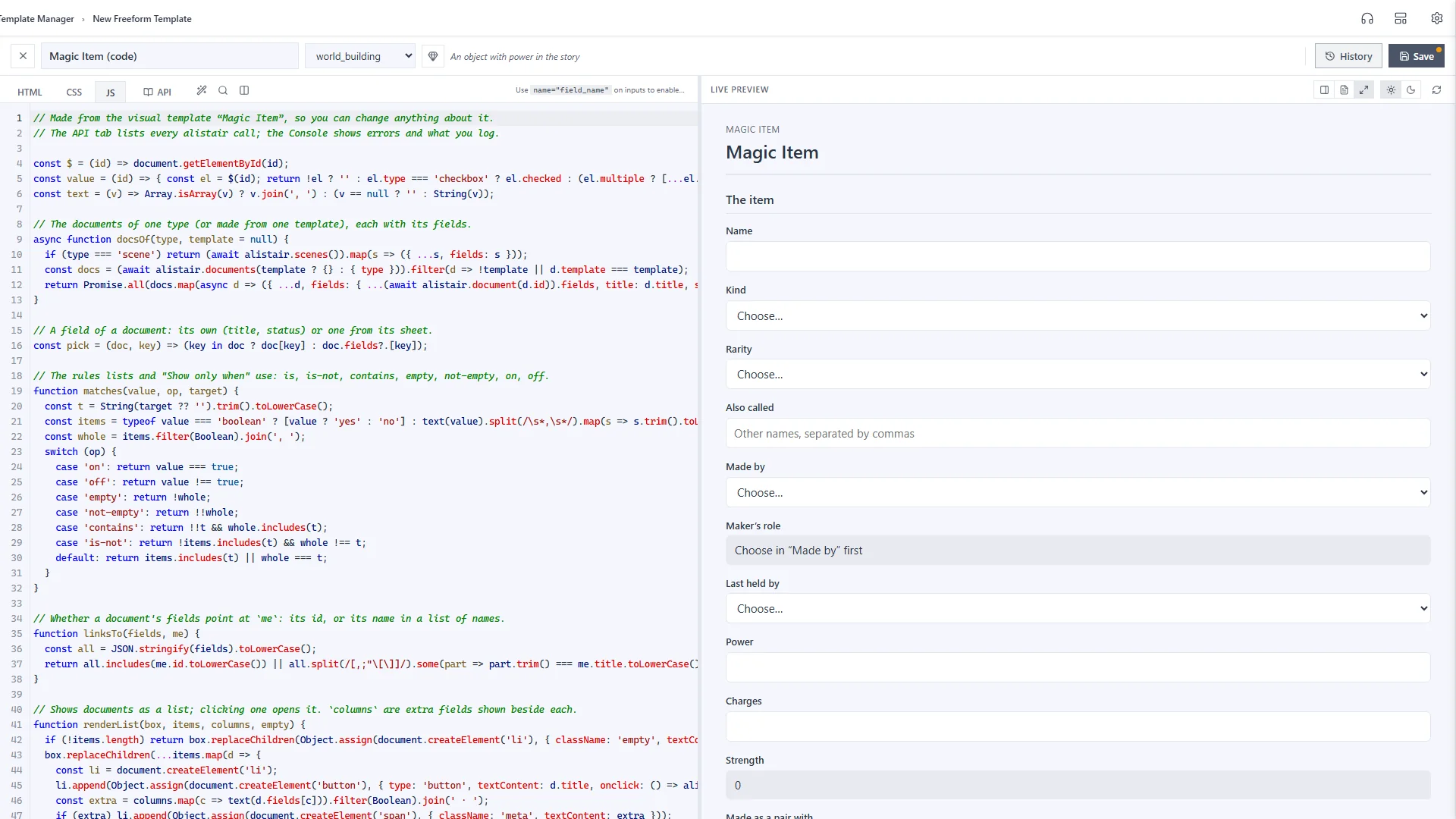
When you want something the builder doesn't offer, press the code button in the builder's top bar. Alistair makes a code copy of your template: the same fields in HTML, a stylesheet, and JavaScript with a short, commented function for each list, lookup, count, calculation, rule and button. Change anything you like. The visual template and its documents stay as they are.